

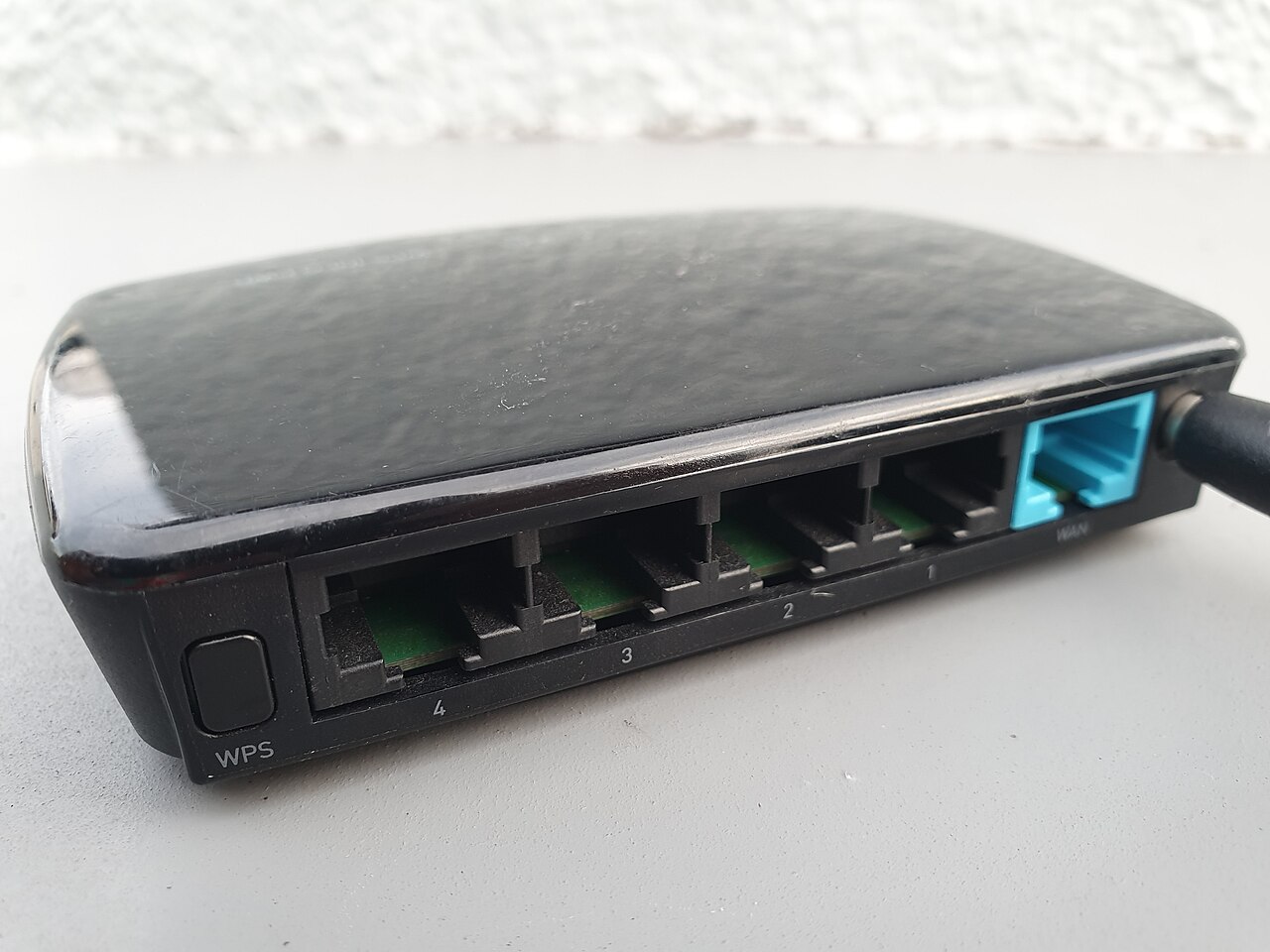

Slow or unreliable Wi-Fi ranks among the most common household tech complaints. But there are numerous solutions that don’t require replacing any gear. This guide covers basic troubleshooting, an overview of how Wi-Fi typically works in a home network and when to replace the router.
How to troubleshoot problems
Speed test: Take a speed test next to the router, ideally connected with an Ethernet cable, and then again in the room where you’re experiencing issues. If the connection is slow near the router, the problem is likely with the internet subscription or the ISP, and not the Wi-Fi network. If the connection is slow throughout the house, then coverage and interference are a problem.
Router placement: Where you place your router is frequently the most important thing you can do for coverage.
Center of the house: not in a corner or at the far end of the house
On a shelf, table or other raised surface, not on the floor or inside a cabinet
Away from thick walls, mirrors, large metal objects and aquariums
Away from sources that use radio frequencies: microwave ovens, cordless phones and baby monitors
Angle: if the router’s antennas are adjustable, angle some vertically and some horizontally to cover upper and lower levels
Bands: Most modern routers operate on more than one frequency band.
2.4 GHz: longer range, penetrates more walls, but slower speeds
5 GHz: faster speeds, less penetration
6 GHz: newest standard, fastest speeds with less congestion, but shortest range
Use the higher band for devices near the router, and the lower one for reaching into far rooms and simple wireless devices. Many routers combine the bands under a single network name and allow devices to connect to whichever band is available, but some have separate names for each band. If you’re having issues, separate the bands so you can connect to whichever one has a better signal.
Interference and congestion: Many home users, especially in apartment buildings, have dozens of competing networks. Routers typically pick a channel for the connection, and some channels are simply more congested than others. Pick a channel that’s not in use, if your router allows this. Channels 1, 6 and 11 are the furthest apart on the 2.4 GHz band and tend to have the least overlap. Restarting the router occasionally can alleviate intermittent problems.
Firmware and updates: Routers occasionally get software updates that fix security issues and bugs. Check the firmware in your router’s management interface or companion application. Also make sure your devices are up to date, as older phones and computers may have outdated Wi-Fi drivers that cause connection issues.
Ethernet cabling: Ethernet (wired) connections are more reliable and faster than Wi-Fi, so they’re a good option for desktop computers, game consoles and televisions. They’re also more efficient with Wi-Fi capacity by eliminating a wireless device. If running Ethernet cabling is impractical, you might consider powerline or MoCA adapters, which use electrical outlets to send internet traffic. These can be a good middle ground for people who want something better than Wi-Fi, but less complex than running Ethernet cables throughout the house.
Extenders: If there are dead zones where the Wi-Fi signal is too weak, consider extenders, mesh Wi-Fi systems or wired access points.
Wi-Fi extenders repeat the signal from your main router. Cheap extenders can cut the speed in half, and they may create a second network that you have to manually switch between.
Mesh Wi-Fi systems are more expensive but more reliable. They use multiple devices (nodes) to create a single network name throughout the house and intelligently pass your connection from one node to the next. Mesh systems are best for large houses or multi-level homes.
Access Points: Wired access points can be the most reliable option, if you can run an Ethernet cable from the router to the access point. Place the access point or extender at the edge of your Wi-Fi coverage, not in the middle of a dead zone. This will provide a stronger signal for the extender to pass along to other devices.
Security
A secure Wi-Fi network can also be a faster network, since it prevents unauthorised users from consuming bandwidth.
Use WPA2 or WPA3 encryption, a strong password and a unique network name
Change the default admin username and password on the router
Disable unused features, such as remote administration
Review the list of connected devices to make sure there are no unknown computers or smartphones
When to replace the router
Consider replacing the router if it is many years old, does not support newer standards, can’t keep up with the number of devices in your household or the manufacturer no longer supports it with security updates. Make sure the new router plan supports the internet subscription you have and the devices you want to connect have the latest Wi-Fi standard.
FAQ
Does a higher-end router always deliver better performance and range?
Not necessarily. The physical location of the router plays a huge role in the coverage, so a cheaper router in a better location can deliver better performance than an expensive router in a bad location.
Why is my Wi-Fi always slow in the evenings?
Many households tend to consume more data at night, so both your ISP and your home network can become congested. If you suspect this is the case, you could try connecting a device directly with an Ethernet cable, or test the connection on different Wi-Fi bands. If it’s only one phone or laptop that’s slow, it could be a problem with that specific device.
Should I leave the router on or off when not in use?
It is better to leave the router on, as turning it off and on again can actually tax the internal components. An occasional restart should be fine for most routers, but it isn’t necessary to turn it off every night.
Wi-Fi troubleshooting checklist
If the Wi-Fi becomes slow or stops working entirely, try the following before contacting the ISP:
Restart the router and the device
Check the Wi-Fi signal strength in a closer location to the router
Try connecting with a different phone or laptop to see if it’s a problem with one device
Disconnect any devices that are downloading or streaming
Check your router for a firmware update
Connect a computer directly to the router with an Ethernet cable to see if the problem affects the entire internet connection